Asset Management
Content Hub is ClaudeKit Marketing’s central asset management system. Store, organize, preview, and manage all marketing materials in one place.
Overview
Content Hub provides a unified interface for managing diverse marketing assets:
- Content & Writing Styles - Blog posts, landing pages, email sequences, author voice profiles
- Storyboards - Visual scripts for video production and campaigns
- Presentations - Pitch decks, campaign proposals, product demos
- Infographics - Data visualization and visual storytelling
- Brand Guidelines - Logos, color palettes, typography, brand voice
- Social Media Posts - Platform-specific content with preview capabilities
All assets are stored in the /assets/ directory with intelligent categorization and searchable metadata.
Interface
Access Content Hub via the /ckm:dashboard command:
/ckm:dashboardMain Hub Interface
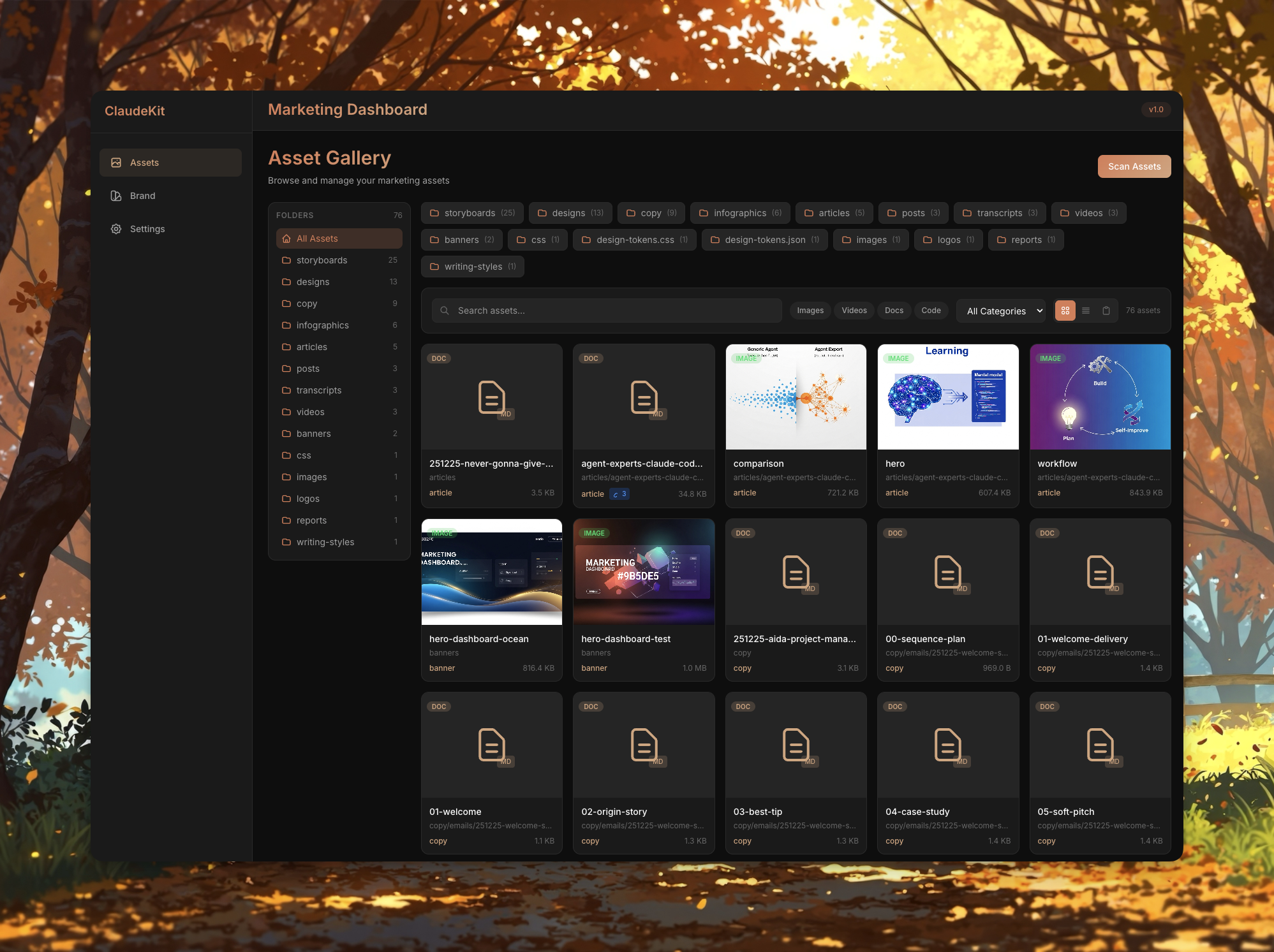
The hub displays all asset categories with:
- Quick Preview - Thumbnails and metadata
- Category Filters - Filter by asset type
- Search - Full-text search across all assets
- Bulk Operations - Multi-select actions
Brand Guidelines
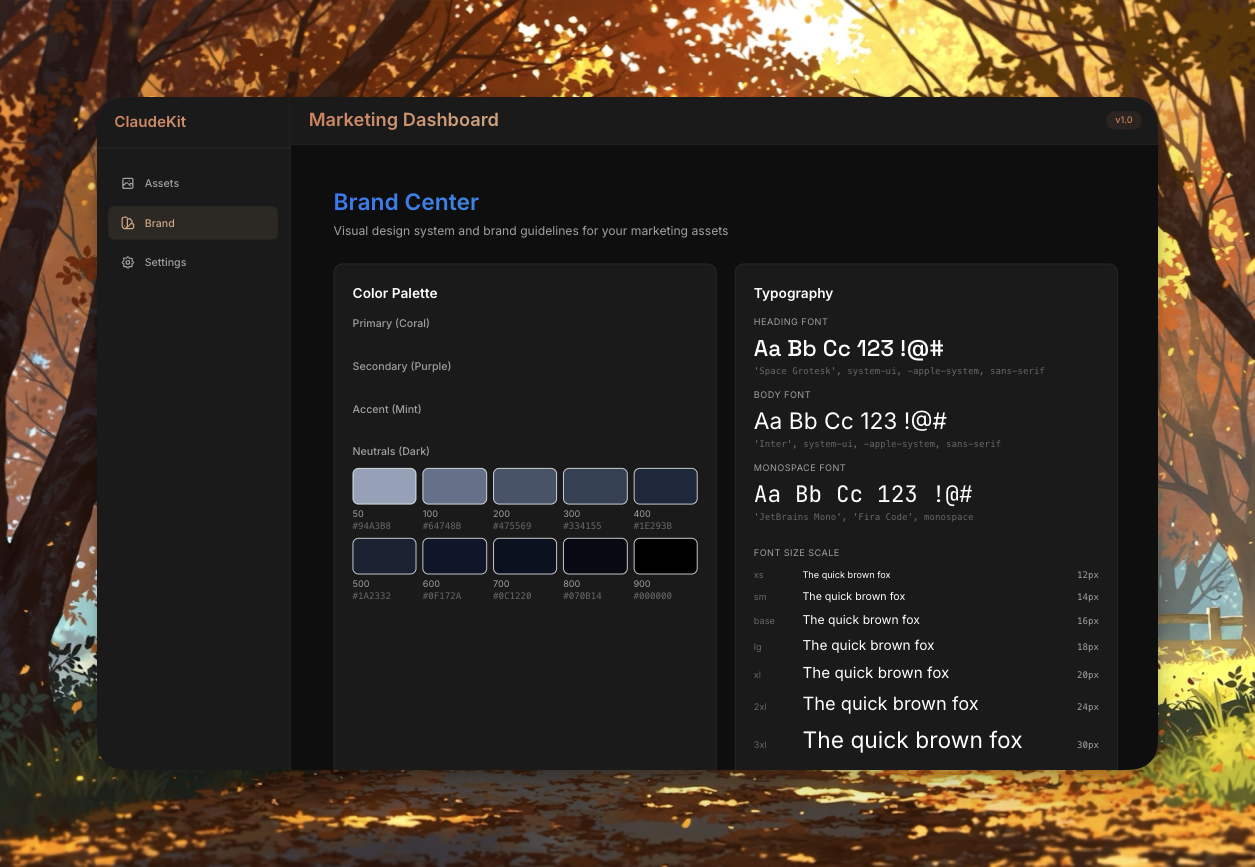
Centralized brand assets ensure consistency throughout campaigns:
- Logo variations (primary, secondary, monochrome)
- Color palettes with hex/RGB values
- Typography specifications (fonts, sizes, weights)
- Brand voice and style guidelines
- Usage rules and examples
Storyboards
Preview Mode:
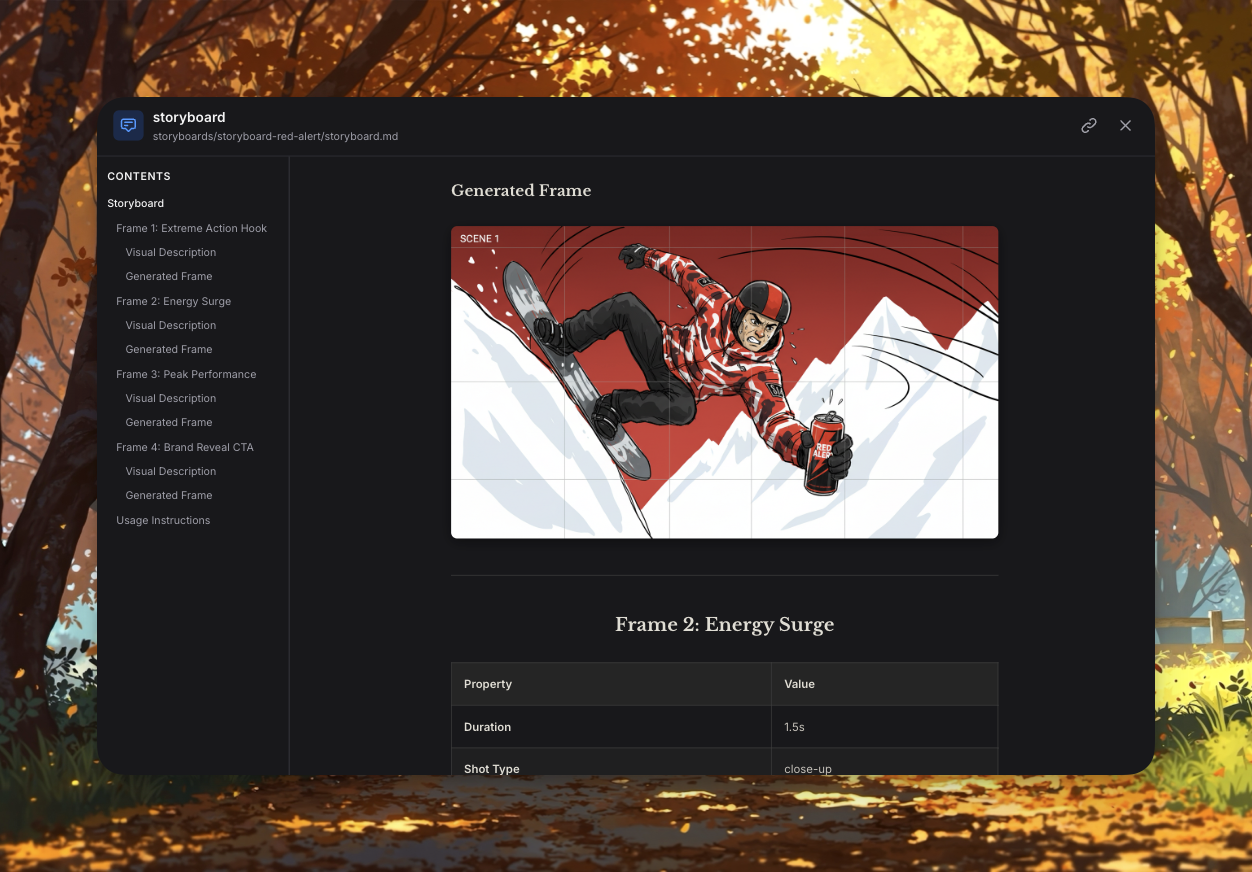
Visual storyboards generated by the /ckm:video:storyboard command:
- Scene-by-scene breakdown
- Visual frames (generated by Imagen 4)
- Dialogue and voiceover text
- Camera angles and transitions
Generation Options:
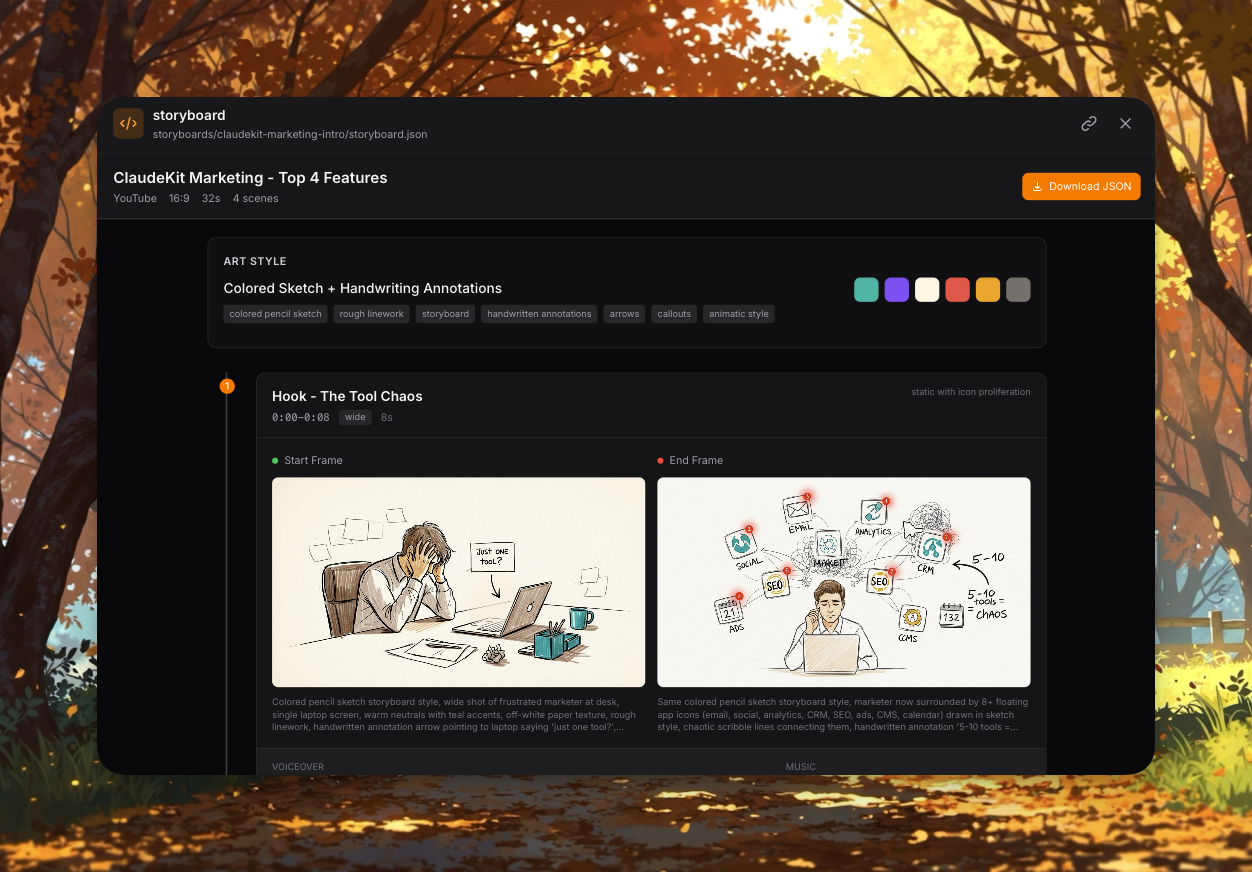
Customize storyboard generation:
- Select platform (YouTube, TikTok, Instagram Reels, LinkedIn)
- Duration (15s, 30s, 60s, 90s)
- Style (Documentary, Commercial, Tutorial, Testimonial)
- Tone (Professional, Casual, Inspirational, Humorous)
Presentations
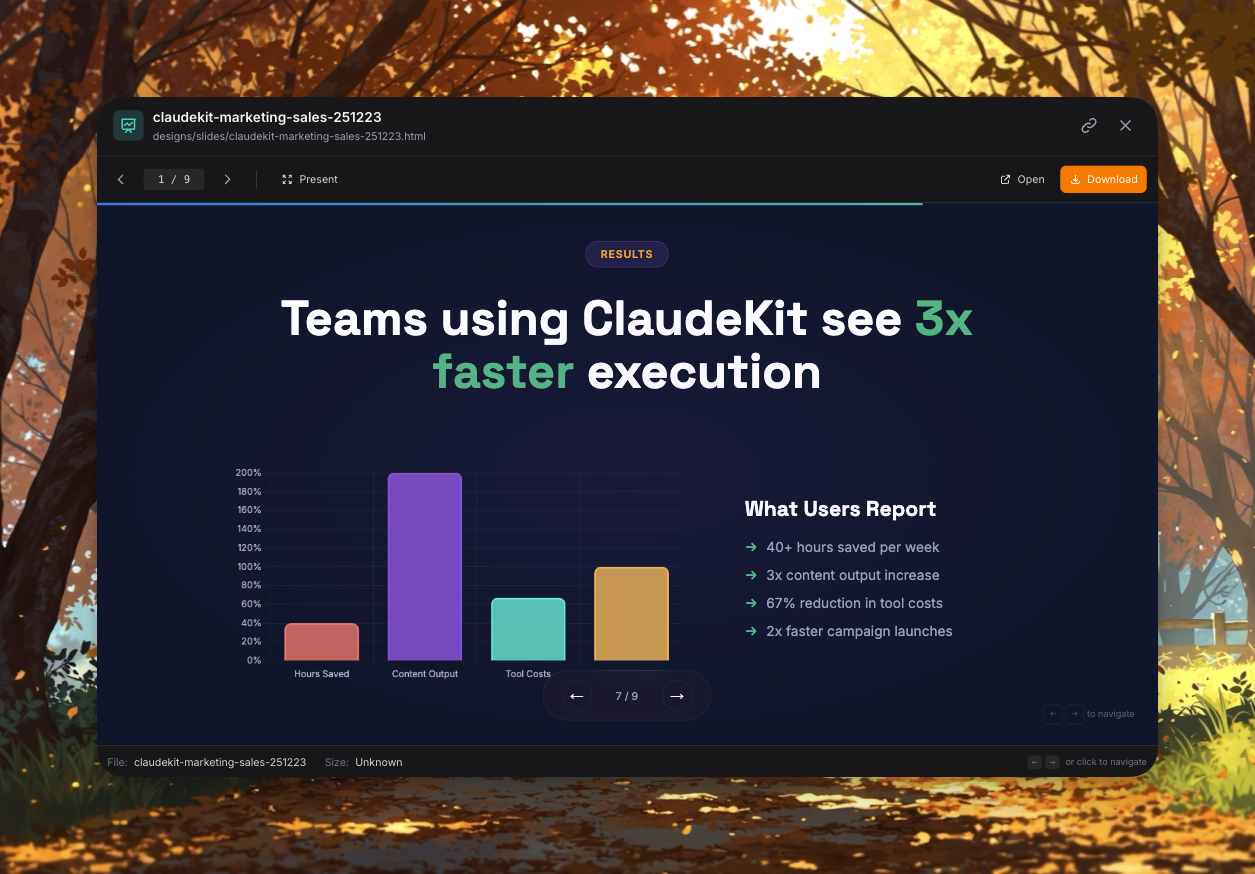
Presentations created with /ckm:slide:create:
- Pitch decks for investors
- Campaign proposals for clients
- Product demos for sales
- Internal reports for stakeholders
Supported formats: .pptx (editable), PDF, PNG, Google Slides
Infographics
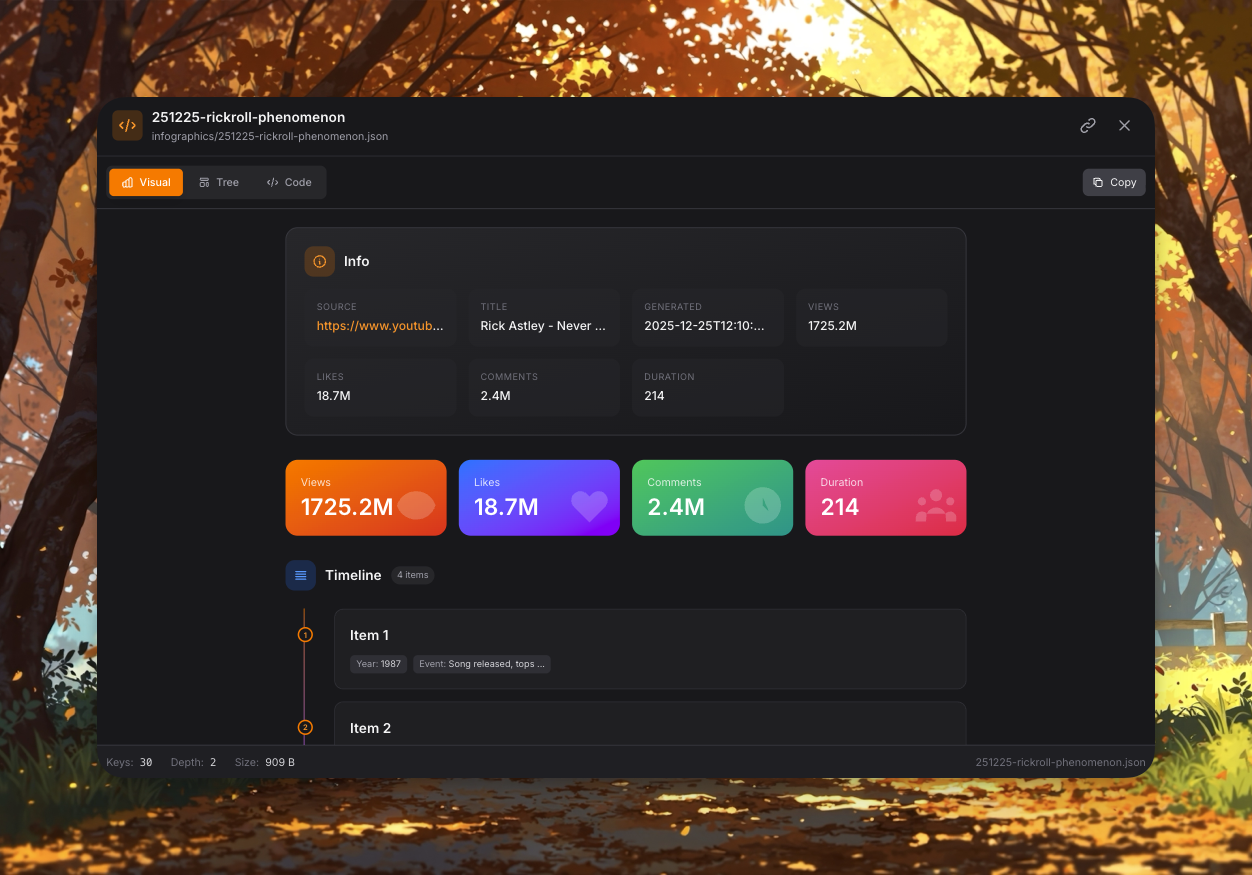
Data visualization and visual storytelling:
- Process diagrams
- Comparison charts
- Timeline infographics
- Statistical visualizations
- Icon-based explanations
Social Media Posts
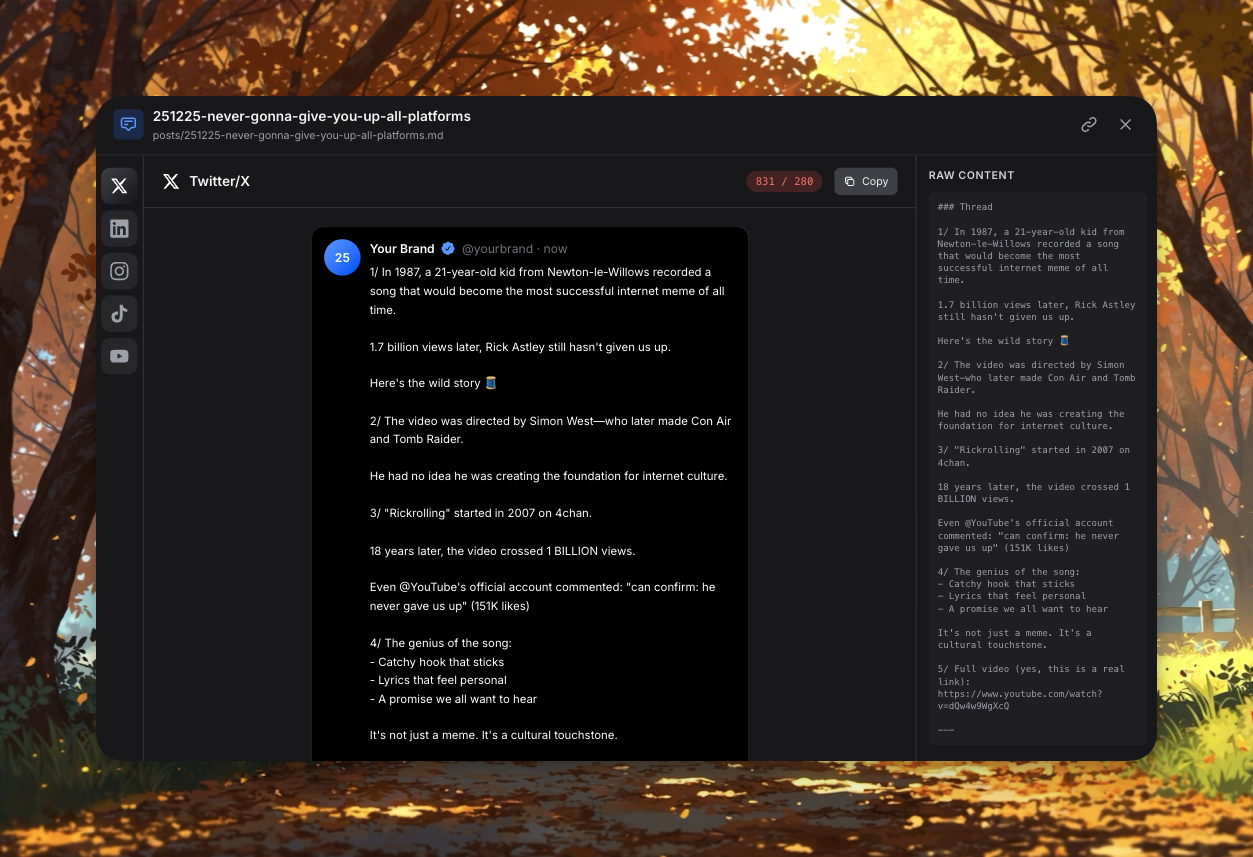
Platform-specific social media content:
- Preview with platform UI mockups
- Character count validation
- Hashtag suggestions
- Image/video attachments
- Scheduling metadata
Directory Structure
/assets/
├── writing-styles/          # Author voice profiles
│   ├── blog-author-1.md
│   ├── email-copywriter.md
│   └── landing-page-style.md
├── copy/                    # Written content
│   ├── blog-posts/
│   ├── landing-pages/
│   ├── email-sequences/
│   └── ad-copy/
├── storyboards/             # Video scripts
│   ├── product-launch-video.md
│   ├── testimonial-series/
│   └── social-ads/
├── slides/                  # Presentations
│   ├── pitch-deck-v2.pptx
│   ├── q4-campaign.pdf
│   └── product-demo.pptx
├── infographics/            # Visual data
│   ├── customer-journey.png
│   ├── feature-comparison.svg
│   └── metrics-dashboard.png
├── branding/                # Brand assets
│   ├── logo-pack/
│   ├── color-palette.md
│   ├── typography.md
│   └── brand-voice.md
└── social/                  # Social media content
    ├── linkedin/
    ├── twitter/
    ├── instagram/
    └── tiktok/
Hub Features
1. Preview Modes
Click any asset to open full preview:
- Markdown - Rendered with syntax highlighting
- Images - High-resolution lightbox view
- Videos - Embedded player with controls
- PDFs - In-browser document viewer
- Presentations - Slide-by-slide navigation
2. Quick Actions
Hover over assets for instant actions:
- Edit - Open in default editor
- Duplicate - Create copy with suffix
- Move - Transfer to another category
- Delete - Remove with confirmation
- Share - Generate shareable link
3. Search & Filtering
Search:
- Full-text search in filenames and content
- Fuzzy matching for typos
- Real-time results as you type
Filters:
- By category (Copy, Storyboards, Slides, etc.)
- By date (Last 7 days, Last 30 days, All)
- By status (Draft, Published, Archived)
- By tags (custom labels)
4. Bulk Operations
Select multiple assets for batch actions:
- Export - Download as ZIP file
- Tag - Apply labels to multiple items
- Move - Batch category transfer
- Delete - Remove multiple items
5. Version History
Track changes over time:
- Git-based version control (if repo initialized)
- View diffs for text-based assets
- Restore previous versions
- Compare versions side-by-side
Command Integration
Content Hub integrates seamlessly with marketing commands:
/ckm:write Commands
# Blog posts auto-save to /assets/copy/blog-posts/
/ckm:write:blog "10 SaaS Pricing Strategies"

# Use writing style from /assets/writing-styles/
/ckm:write:blog --style "casual-founder-voice"
See Copywriting Skill for details.
/ckm:video Commands
# Storyboards save to /assets/storyboards/
/ckm:video:storyboard "Product demo for homepage"

# Complete video workflow using storyboard asset
/ckm:video:create --storyboard "/assets/storyboards/product-demo.md"
See Media Processing Skill for details.
/ckm:slide Commands
# Presentations save to /assets/slides/
/ckm:slide:create "Q4 Campaign Proposal"

# Output: /assets/slides/q4-campaign-proposal.pptx
See Content Marketing Skill for details.
/ckm:dashboard Commands
# Open Content Hub in browser
/ckm:dashboard

# Open specific category
/ckm:dashboard --category storyboards

# Open with search query
/ckm:dashboard --search "pricing strategy"
See Analytics Skill for details.
Workflow Examples
Example 1: Create Campaign Assets
# 1. Create campaign storyboard
/ckm:video:storyboard "SaaS product launch - 60s YouTube ad"

# 2. Create presentation for stakeholder approval
/ckm:slide:create "Product Launch Campaign Proposal"

# 3. Write accompanying launch blog post
/ckm:write:blog "Introducing Our Revolutionary SaaS Platform"

# 4. Review all assets in Content Hub
/ckm:dashboard --category recent
All assets are automatically organized in /assets/ with appropriate categorization.
Example 2: Brand Consistency Audit
# 1. Open brand guidelines
/ckm:dashboard --category branding

# 2. Review brand voice and color palette
# 3. Audit existing content against guidelines
/ckm:write:audit /assets/copy/blog-posts/recent-post.md

# 4. Update content to match brand voice
# 5. Verify consistency in Content Hub preview
Example 3: Content Repurposing
# 1. Find existing blog post in Content Hub
/ckm:dashboard --search "pricing strategies"

# 2. Repurpose into slide deck
/ckm:slide:create "Pricing Strategies Webinar" --source /assets/copy/blog-posts/pricing-guide.md

# 3. Create video storyboard from slides
/ckm:video:storyboard --based-on /assets/slides/pricing-webinar.pptx

# 4. Generate social posts from key points
/ckm:social:post --platform linkedin --source /assets/slides/pricing-webinar.pptx
Unfair Advantage
Content Hub leverages ClaudeKit’s codebase context to create product-aware assets:
- Product Screenshots - Auto-extracted from your codebase
- Feature Descriptions - Generated from actual code and documentation
- Technical Accuracy - Marketing claims verified against implementation
- Version Sync - Assets updated when product features change
Example:
# Create storyboard with real product screenshots
/ckm:video:storyboard "Feature demo: AI-powered analytics dashboard"

# ClaudeKit:
# 1. Scans /src/components/Analytics/ for actual UI
# 2. Captures screenshots directly from dashboard
# 3. Generates storyboard with real product imagery
# 4. Ensures feature descriptions match implementation
See Marketing Index for more on codebase context advantage.
Best Practices
1. Naming Conventions:
- Use kebab-case for filenames:
product-launch-video.md - Include dates for versioned content:
pitch-deck-2025-01.pptx - Prefix drafts:
draft-campaign-proposal.md
2. Organization:
- Group related assets in subdirectories
- Use consistent category structure
- Tag assets for cross-category discovery
3. Version Control:
- Initialize Git in
/assets/directory - Commit after creating important assets
- Use descriptive commit messages
4. Metadata:
- Add frontmatter to markdown assets
- Include creation date, author, status
- Tag with relevant keywords
5. Cleanup:
- Archive outdated campaigns
- Delete unused drafts regularly
- Export completed campaigns for backup
Technical Details
Supported File Types:
- Text:
.md,.txt,.html - Images:
.png,.jpg,.svg,.webp - Videos:
.mp4,.webm,.mov - Documents:
.pdf,.pptx,.docx - Data:
.json,.csv,.yaml
Performance:
- Lazy loading for large asset libraries
- Thumbnail caching for images/videos
- Indexed search for instant results
Security:
- Local-only storage (no cloud sync)
- Git-based version control (optional)
- No external dependencies
Related Documentation
- Analytics Skill - Full skills reference
- Copywriting Skill - Content creation
- Media Processing Skill - Video production
- Content Marketing Skill - Presentation creation
- Marketing Workflows - End-to-end workflows
Troubleshooting
Assets not appearing in dashboard?
- Verify files are in
/assets/directory - Check file permissions (must be readable)
- Refresh dashboard browser window
Preview not displaying?
- Ensure file type is supported
- Check if file is corrupted
- Update ClaudeKit to latest version
Search not finding assets?
- Rebuild search index:
/ckm:dashboard --reindex - Check spelling in filenames and content
- Verify file not in ignored directory
Next Steps:
- Run
/ckm:dashboardto explore existing assets - Create your first asset with
/ckm:write:blog,/ckm:video:storyboard, or/ckm:slide:create - Review Marketing Workflows for end-to-end examples