Gemini API: Why do you need it?
TLDR
Anthropic has focused on training Claude models for coding capabilities, so they haven’t invested much in vision abilities. This makes Claude models’ image analysis quality subpar, affecting software development workflows.
Note: Gemini API will incur costs. If you feel you don’t need it, you can completely skip this step!
Installation
- Get your Gemini key at Google AI Studio
- Find the
.env.examplefile:
- If you installed ClaudeKit at project scope: copy
.claude/.env.exampleto.claude/.env - If you installed ClaudeKit at global scope: copy
~/.claude/.env.exampleto~/.claude/.env(for Windows users:%USERPROFILE%\.claude\.env)
- Open the
.envfile and fill in the value forGEMINI_API_KEY
That’s it!
The following section is adapted from my recent research on:
The Problem with Claude’s “Eyes”
To make debugging easier, providing screenshots so CC can visualize the problem is essential. I use this method very often.
But recently I discovered something: Claude’s vision model is quite poor, not as good as competitor models (Gemini, ChatGPT,…).
Look at this example, Claude Desktop completely failed compared to Gemini and ChatGPT:
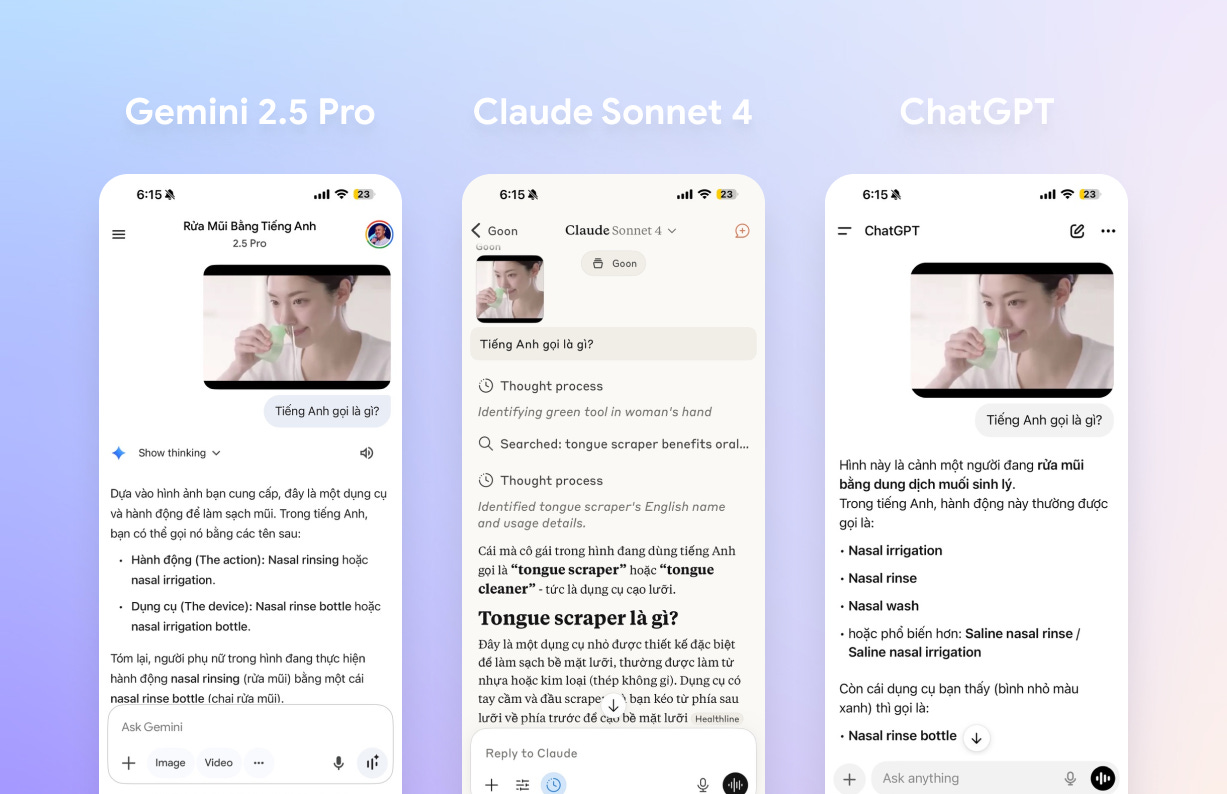
Claude couldn’t correctly identify the actions and devices in the image.
Now let’s compare directly between Claude Code and Gemini CLI!
I’ll ask both to read a blueprint image and describe in detail what they see:
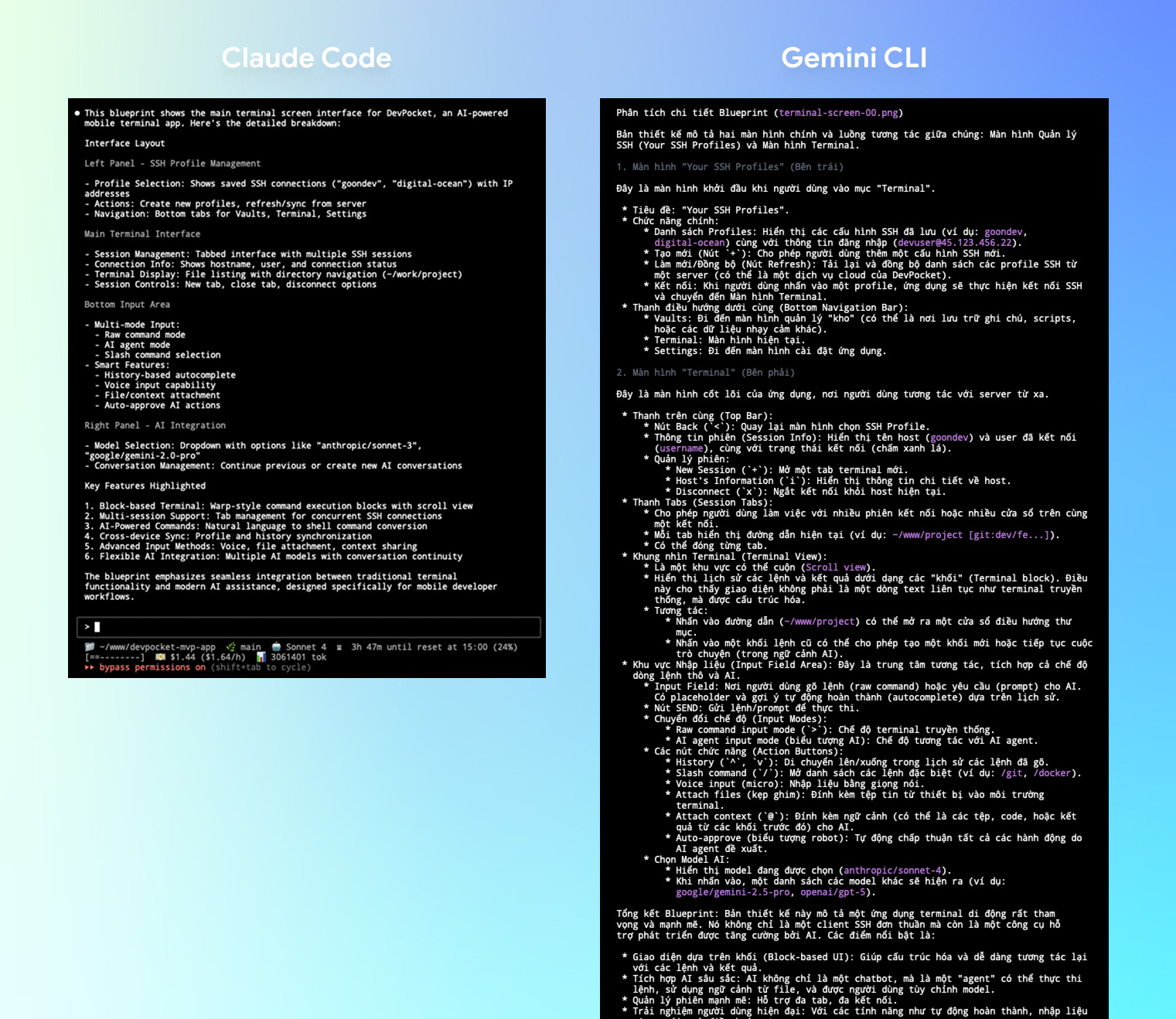
Gemini CLI provides detailed descriptions of the blueprint, while Claude Code is quite superficial…
Do you see the difference?
Wait, there’s one more thing that Claude’s “eyes” currently CANNOT do: VIDEO ANALYSIS capability
But Gemini (web version, not CLI) can do this, which makes debugging in Vibe Coding much easier.
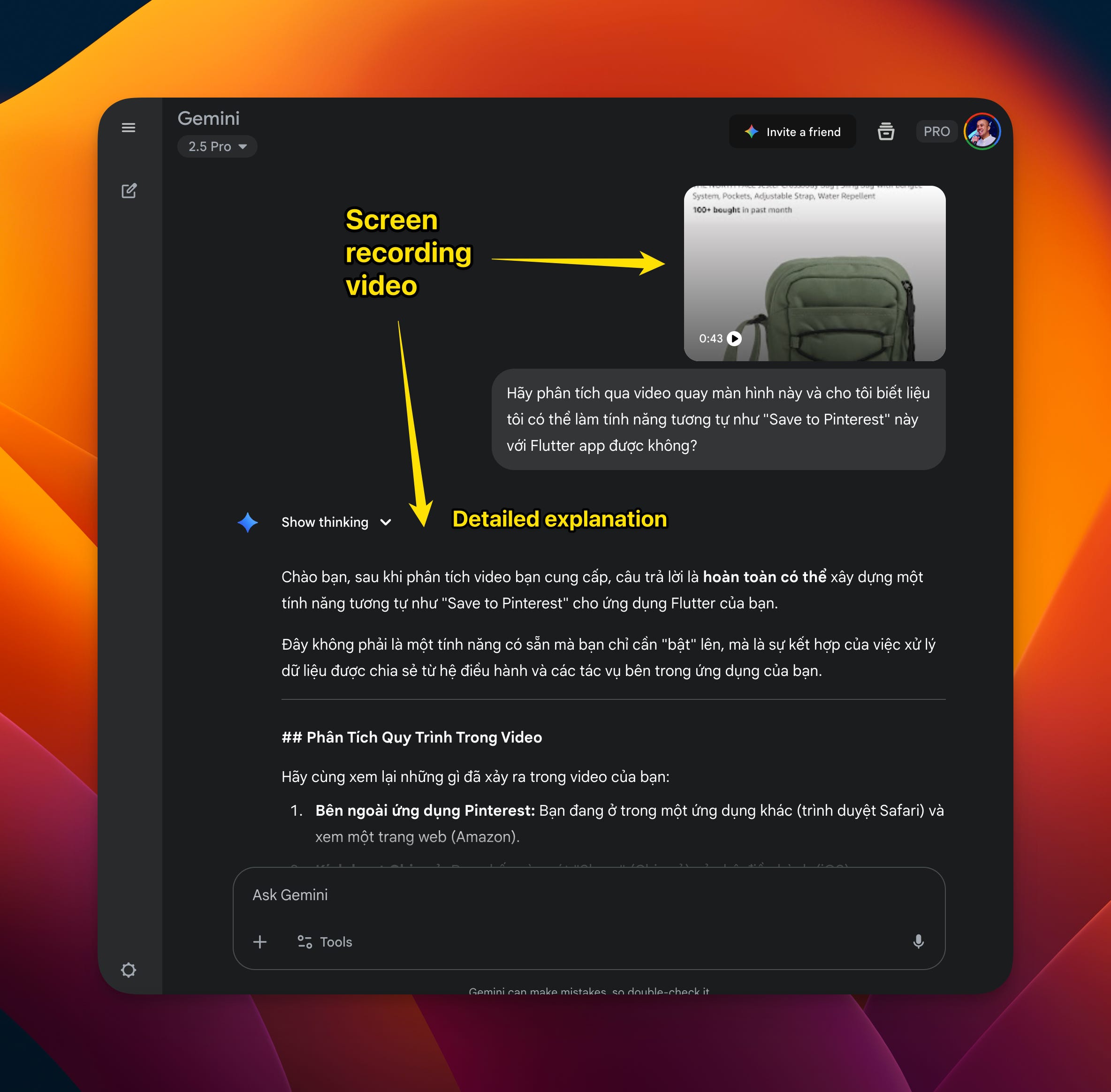
You don’t always fully understand the situation, describe how to reproduce the bug, and figure out the solution direction. Recording the screen and giving it to Gemini (Web version) to help guess the root causes or suggest handling directions is not a bad solution at all.
The only problem is that Gemini web version doesn’t have codebase context, so I have to include that information in the prompt, which is quite tedious…
So I decided to create this MCP: Human MCP
The purpose is to use Gemini API to analyze images, documents (PDF, docx, xlsx,…) and videos.
In the early days of ClaudeKit, I had “Human MCP” pre-installed by default.
And you need GEMINI_API_KEY in the “Human MCP” env for it to work.
Then, Anthropic launched Agent Skills!
Everyone knows: MCP also has its problem - it consumes too much context
Here’s an example from Chrome Devtools MCP and Playwright MCP:
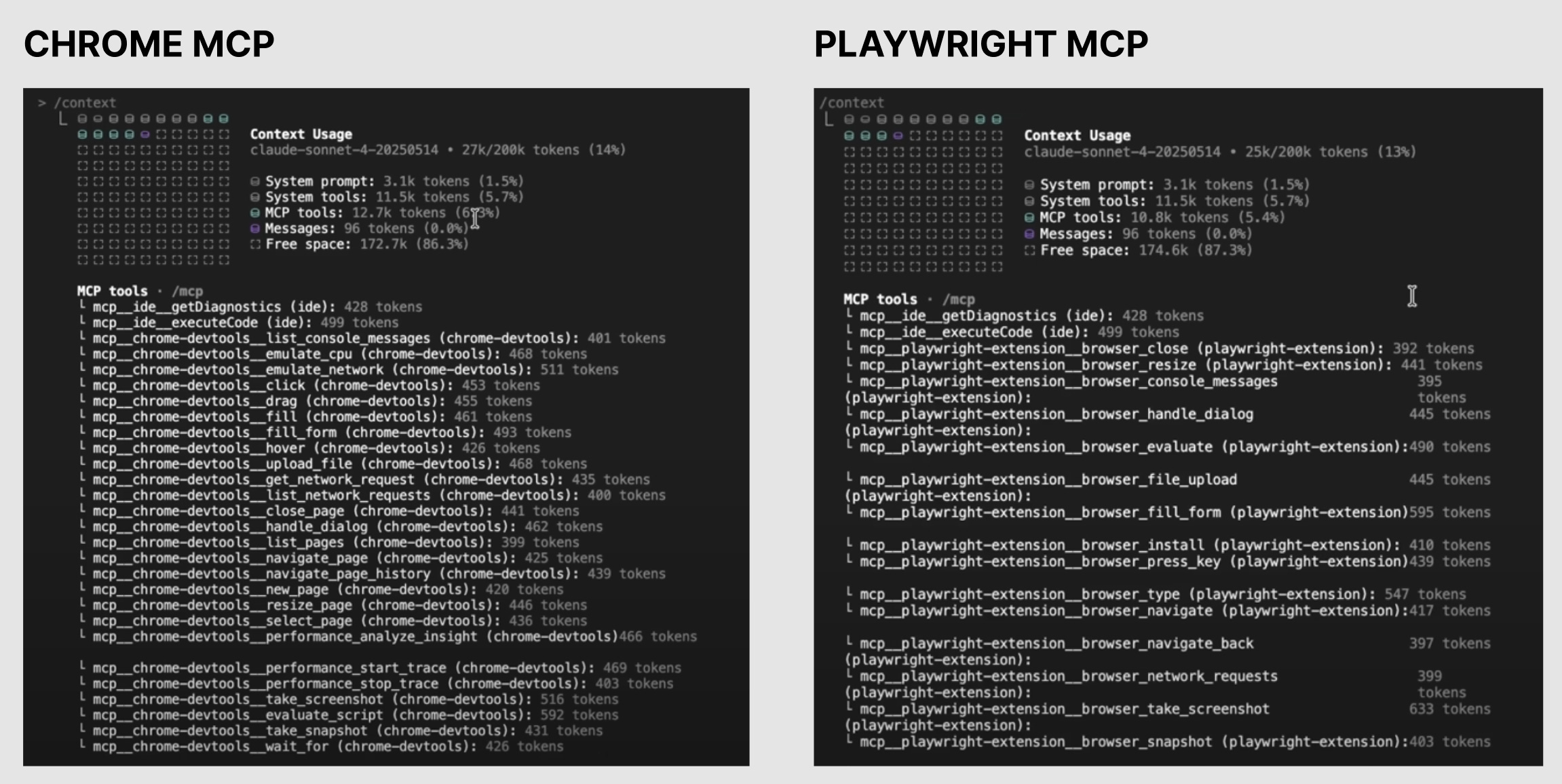
And Agent Skills was created to solve that problem.
So I’ve converted all Human MCP tools into Agent Skills, so we can have more free space in the context window for agents to work.
Therefore, GEMINI_API_KEY has been moved to .claude/.env, you just need to enter the value there.
Typically, skills will be automatically activated depending on the context the agent is handling.
But if you need to manually activate this skill, just prompt like this: use ai-multimodal to analyze this screenshot: ...
It’s that simple.
🎄 Holiday Special
Code Hunt 2025: You found an egg! 🥚
Use code
J1NGLEB3LLSfor 40% off ClaudeKit. Only 50 uses available!